Download via Desktop Client
This guide covers using the XNAT Desktop Client for downloading data from XNAT. The Desktop Client provides the most reliable method for downloading large datasets with features like pause, resume, and background processing.
Prerequisites
XNAT Desktop Client installed - see Install XNAT Desktop Client
Server connection configured with your XNAT credentials
Network access to xnat.abudhabi.nyu.edu
Generate XML file in XNAT
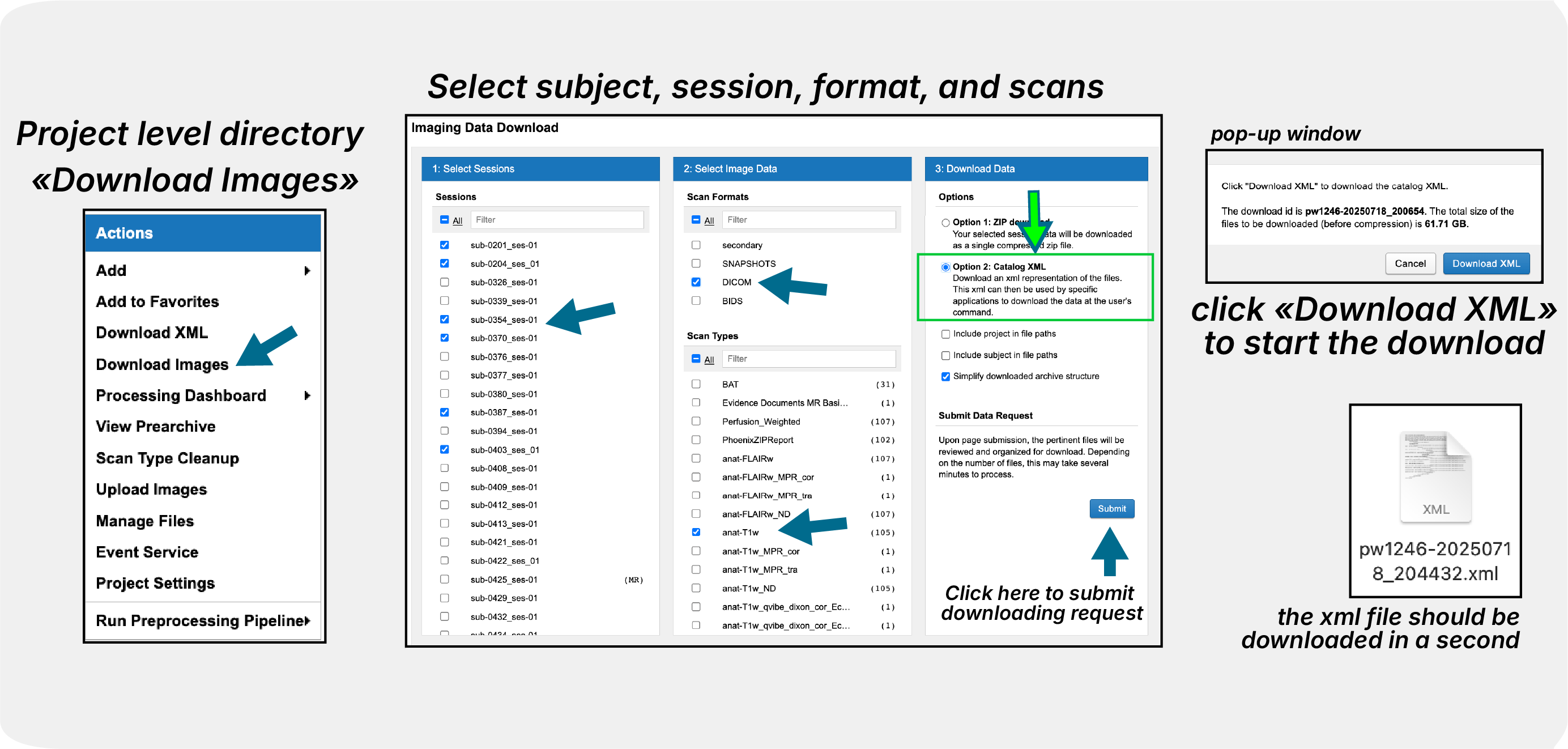
Go to your project and select “Download Images”
Choose “Catalog XML” as the download format
Download the .xml file to your computer
Import to Desktop Client
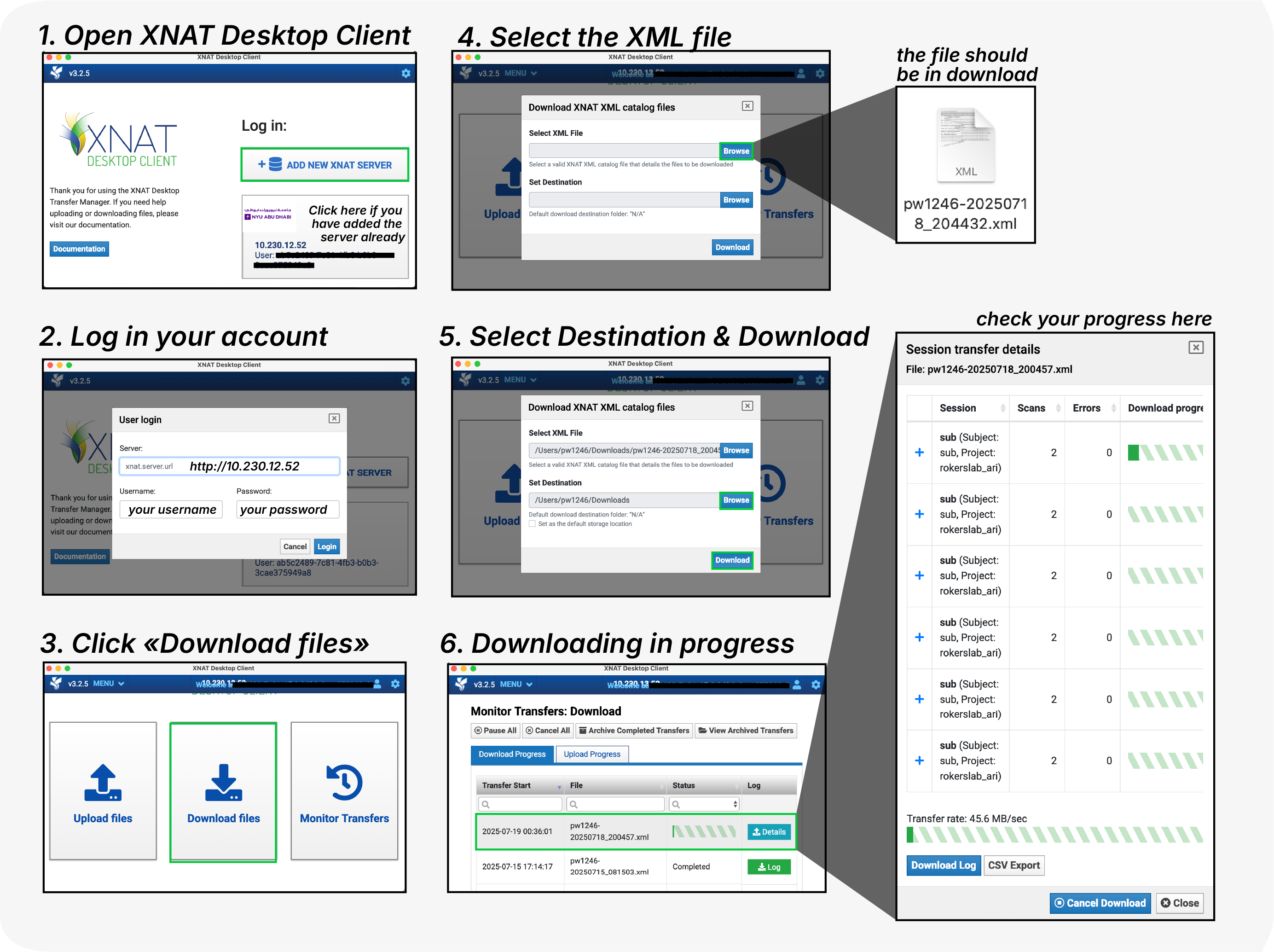
Open XNAT Desktop Client
Ensure you’re logged into the correct XNAT server
Select “Download Files” from the main menu
Browse and select your downloaded .xml file
Set download location and click “Download”
For comprehensive downloading instructions, see the official download guide.
Troubleshooting
Conflicting Sessions: - Issue: Download conflicts with existing Desktop Client session - Solution: Ensure you’re logged into the same XNAT server with the same credentials in both web browser and Desktop Client
Slow Downloads: - Current speed limit: 10 MB/s. This is being worked on. - Large datasets will take time - use pause/resume as needed - Plan downloads during off-peak hours
Failed Downloads: - Check network connectivity to xnat.abudhabi.nyu.edu - Verify authentication credentials are current - Use Transfer Monitor to identify specific failed files
Download Location Issues: - Set a default download location in Application Settings - Ensure sufficient disk space for large datasets - Check folder permissions for write access
Getting Help
For Desktop Client specific issues:
Review the official XNAT Desktop Client documentation
Consult version compatibility matrix
Next Steps
After downloading your data:
Organize locally according to your analysis workflow
Verify data integrity by checking file counts and sizes
Begin analysis with your preferred tools